Sunday, 6 May 2012

Upgrade XP2 to XP3 Using regedit

No need to download win Xp3...
Hassle Free

Here we go...

Steps:

1. Open the Registry Editor.
2. Navigate to the key:

HKEY_LOCAL_MACHINE\SYSTEM\CurrentControlSet\Control\Windows


3. Double-click the DWORD value CSDVersion and change the value data from 200 to 300.
4. Click OK.


5. Close the Registry Editor.
6. Reboot the machine.

Thursday, 3 May 2012

Typing of the Dead (Mediafire)


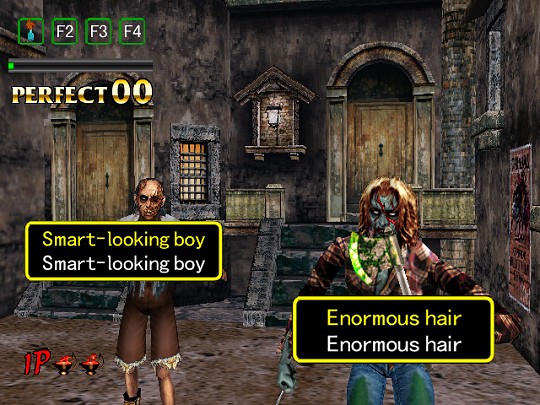
Typing of the Dead is styled as a first-person rail shooter game, but substitutes shooting zombies and other enemies with typing out words or phrases to kill them. When enemies appear, they are accompanied by a box showing a word, sentence or phrase which must be typed to neutralize the enemy. The length, and complexity, of the phrases increase during the game's progression. Other features retained include the challenges of saving survivors, which will alter the path the player character will take to his final destination, and the secrets/bonus items hidden throughout the game.

Download Link

Replace Windows 7 Default Boot Screen Animation

Microsoft’s fastest selling operating system, Windows 7, features a cool boot screen but users who
have been watching the same boot screen ever since the Beta days might want to replace the default boot screen animation with a custom one.


Unlike, earlier versions of Windows, changing the default boot screen animation is not a simple task in Windows 7.
But it’s possible with the help of a free tool named Windows 7 Boot Screen Updater.

This tool is a freeware and allows you to change your Windows 7 boot screen animations and text.
Using this tool, you can give a new look to your Windows while it boots up. This tool even doesn’t requires any installation and is portable i.e you can carry it on any portable device and then run on any PC.
Windows 7 Boot Updater is written in C++/CLI and it requires .NET Framework 2.0 or higher and it will use the Windows WIM library.

You will need to run this tool as an admin
else it won’t allow you to make changes.
Now at the main window, two main options are given i.e Animation and Text. Now in Animation, this tool automatically Select bootress.dll file. The next option is to Select Animation.
This option will let you choose any desires animation for your windows 7 boot screen.

Now the next option available is Text. Here too, this tool automatically loads the Winload.exe file.

Now below this option, two boxer are available with name Message and Copyright. You must have noticed this text when you boot up your system.


Credits to: www.technixupdate.com

 Download Windows 7 Boot Screen Updater

Here are some Animated Boot Screen to download.


2. Windows logo animation (Mediafire)


                                         3. Glowing Apple boot screen (Mediafire)


                                     5. Apple logo boot screen animation (Mediafire)


Don't worry, its safe!!

To have worry free about this application, read below on how to restore.


HOW TO RESTORE:


1. Go to Options

2. Click Restore Backups
3. Press Ok after the prompt message saying that your ~bootmgr1 is restored as bootmgr.

Restart, and done, you have the default windows boot screen animations.

Advanced Archive Password Recovery 4.53


Unlock Password-Protected Archives

Advanced Archive Password Recovery recovers protection passwords or unlocks encrypted ZIP and RAR archives created with all versions of popular archivers. Recover passwords for plain and self-extracting archives created with PKZip and WinZip, RAR and WinRAR automatically or with your assistance. Guaranteed unlocking of archives created with WinZip 8.0 and earlier in under one hour is possible by exploiting an implementation flaw.

Advanced Archive Password Recovery features ultimate compatibility among the various types of archives, knows weaknesses of certain types of protection, and provides best-in-class performance in unlocking all types of archives.
Features and Benefits

>>>Supports all versions of ZIP/PKZip/WinZip, RAR/WinRAR, as well as ARJ/WinARJ, and ACE/WinACE (1.x)

>>>Guaranteed recovery of archives in under 1 hour for ZIP archives created with WinZip 8.0 and earlier and containing at least 5 files
>>>Supports archives over 4 GB and self-extracting archives
??Supports strong AES encryption found in WinRAR and the new versions of WinZip
>>>Exploits all known vulnerabilities and implementation flaws in the various compression algorithms for faster recovery
>>Speedy known-plaintext attack recovers certain ZIP and ARJ archives in minutes (user must supply at least one unprotected file from that archive)
>>Interrupt and resume operation at any time
>>Supports background operation by utilizing idle CPU cycles only
>>Dictionary and brute-force attacks with user-defined masks and advanced templates
>>Highly optimized low-level code for optimum performance


Download Link

Tuesday, 1 May 2012

How to Change the Logon Screen on Windows 7


Be it screensavers, desktop wallpapers or font type and sizes, visual customization at the OS level is usually important to all kinds of users. Recognizing this, Microsoft has made it easier than ever to apply and adjust individual themes with Windows 7. We looked at this last week showing you how to find hidden themes buried in your hard drive as well as sponsored ones available through Microsoft's online Personalization Gallery.

This time around, we are going to show you how to customize the Windows 7 login screen. There are various methods to accomplish this, with and without third-party software. I understand many people might not want to rely on a third-party application, while others would appreciate a quicker, safer route. First up is the more hands-on approach, and then the utility.

Hands-on approach

This method will require you to modify the registry, and if that puts a knot in your stomach, you should move on to the next section.

Step 1: Open the Windows Start menu and enter regedit into the search bar.

Step 2: Right click on HKEY_LOCAL_MACHINE and select Find.

Step 3: Search for OEMBackground, which should be in Computer\HKEY_LOCAL_MACHINE\SOFTWARE\Microsoft\Windows\CurrentVersion\Authentication\LogonUI\Backgro und. If the key does not exist, add a new DWORD value with the name OEMBackground.

Step 4: Double click on the entry OEMBackground, and change the value from 0 to 1.


Step 6: You’ll need to create a couple of folders. To begin, launch Windows Explorer. Then navigate to the C:\Windows\System32\Oobe folder. Once you access the Oobe folder, click the New Folder button in the Windows Explorer toolbar. You’ll see a confirmation dialog box, like the one shown in Figure below. When you click Continue, the new folder will be created and you can name it info.


Step 7: Create a new folder within info named backgrounds.

Step 8: Rename your desired wallpaper as backgroundDefault.jpg and place it inside the folder backgrounds (images must be less than 245KB in size).


That should do the trick, now just lock your PC, log off or reboot and enjoy.


Asoftech Photo Recovery - FULL VERSION


Asoftech Photo Recovery is professional data recovery software that will recover your multimedia after deletion, disk format and partition corruption. It restores photos after deletion, disk format and partition corruption. Retrieves almost all types of photos, movies and sounds files. It recovers from local PC and various removable devices. It supports FAT 12, FAT 16, FAT 32 and NTFS file system. It supports windows 2000/NT/2003/XP/VISTA. It previews recoverable photos.

Download Link